
Is your LinkedIn preview image not showing when you share a WordPress article? The featured image can look correct on the website while LinkedIn receives an unsupported file, an old cached version, incomplete Open Graph metadata, or a text-only post from a scheduling tool. The reliable fix is to test each handoff in the sharing chain instead of repeatedly replacing the same image.
LinkedIn preview image not showing: quick answer
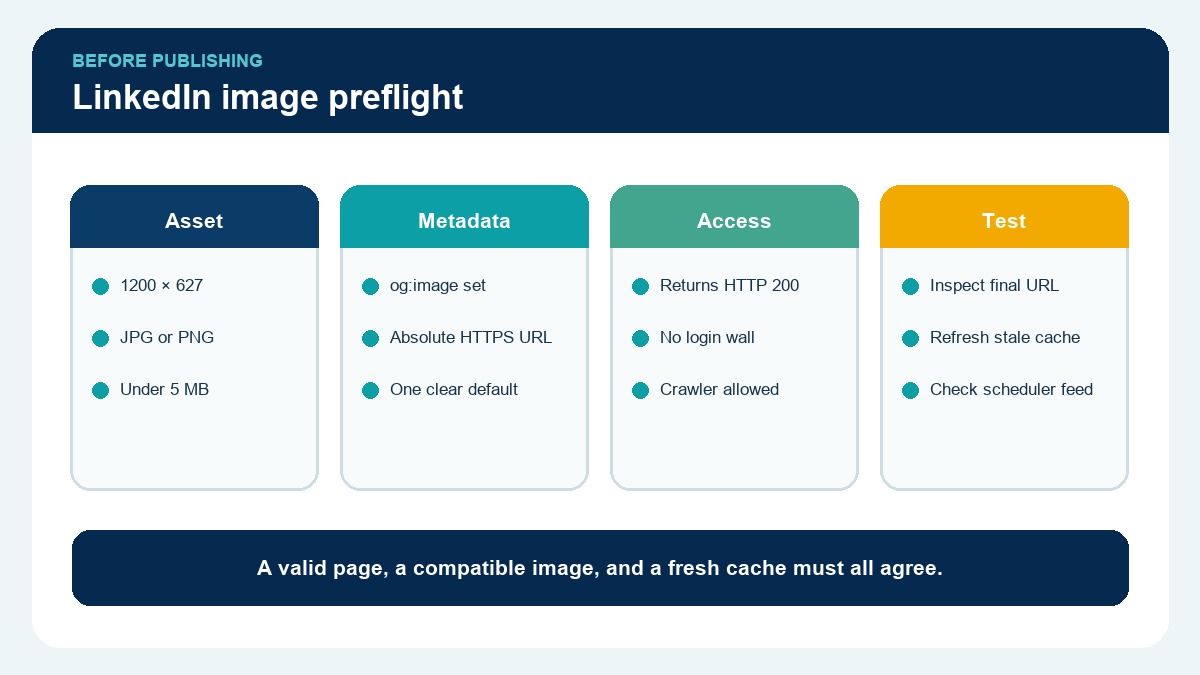
Start with a public 1200×627 JPG or PNG under 5 MB. Confirm that the page exposes one absolute HTTPS og:image URL, that the image returns a successful response without authentication, and that a social scheduler is actually attaching the image rather than sending only caption text. After correcting the page, use LinkedIn Post Inspector to refresh the URL for future shares.
TL;DR
- A WordPress featured image is not automatically a valid LinkedIn preview image.
- Use a 1.91:1 JPG or PNG, ideally 1200×627 pixels.
- Check
og:title,og:description,og:url, andog:imagein the public page source. - Make sure security, hotlink protection, or a CDN does not block LinkedIn’s crawler.
- If you publish through RSS or Metricool, confirm that the feed includes a supported media enclosure.
- LinkedIn may cache old preview information; refresh corrected URLs with Post Inspector.
Why a featured image can disappear on LinkedIn
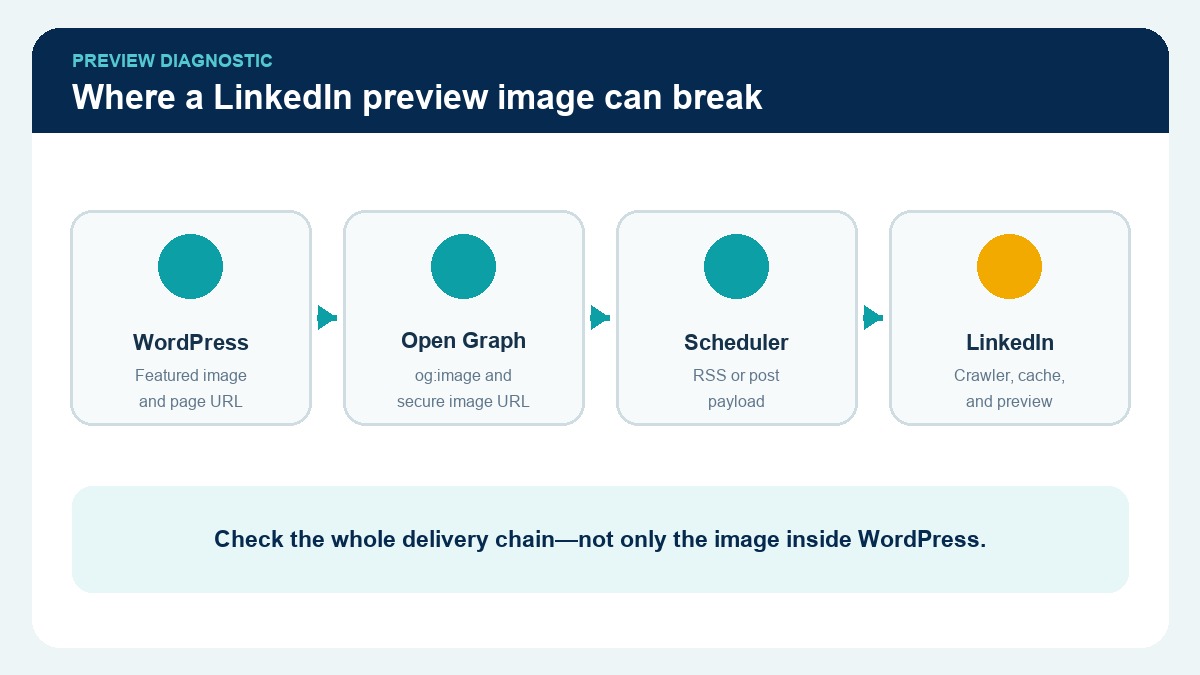
The sharing process has several separate stages. WordPress stores the featured image. An SEO or social plugin generates Open Graph tags. A CDN or security layer serves the page and image. A scheduling platform may read an RSS feed and create a LinkedIn post. LinkedIn then decides whether it can retrieve and display the supplied media.
A failure at any stage can produce the same symptom: the caption appears, but the article image does not. This is why changing the featured image inside WordPress does not always solve the problem.
Check the image format and dimensions first
LinkedIn’s website-sharing guidance recommends a 1.91:1 image with minimum dimensions of 1200×627 pixels and a maximum file size of 5 MB. JPG and PNG are the safest choices for consistent desktop, iOS, and Android handling. LinkedIn’s media-support table lists WebP inconsistently across platforms, so a WebP-only social image can create avoidable risk.
Keep the efficient WebP inside the article if it helps page performance, but provide a dedicated JPG or PNG for Open Graph and the LinkedIn publishing feed. The social asset can use the same creative concept without forcing every channel to consume the same file.
Inspect the Open Graph tags
Open the public article—not the WordPress editor—and inspect the page source. Look for one clear set of values:
og:titledescribing the article;og:descriptionsummarizing the value;og:typeset appropriately, usuallyarticle;og:urlmatching the canonical public URL;og:imageusing an absolute HTTPS URL;og:image:width,og:image:height, andog:image:typematching the actual file.
Duplicate SEO plugins or theme features can output competing tags. LinkedIn may select the wrong image or fail when the declared type does not match the response. Keep one system responsible for social metadata and test the rendered result after plugin or theme changes.
Test whether LinkedIn can retrieve the image
Paste the exact og:image URL into a private browser window. It should load without a login, cookie, referral header, or browser challenge. A successful response should use the correct image content type.
Security plugins, CDNs, bot protection, hotlink controls, and private media directories can all interfere. Check server logs when possible, but do not disable security globally just to make one crawler work. Create a narrow rule only after confirming that blocking is the cause.
Check Metricool and RSS media fields
When an automated tool publishes the post, LinkedIn may not build the same link card produced by manually pasting a URL. The scheduler often needs an explicit media attachment.
For an RSS-based workflow, confirm that the item includes:
media:contentwith a supported image URL and MIME type;media:thumbnail;- an
enclosurewith the correct image type and nonzero length; - an inline image in
content:encodedwhen the scheduler uses that field.
Then inspect the scheduled preview. If it shows only text and a shortened link, the media did not survive the handoff. Fix the feed or the scheduler’s media setting before publishing the next batch.
Refresh LinkedIn’s cached preview
LinkedIn can retain an earlier image or an earlier failure. Its Post Inspector lets you request a fresh inspection of the corrected URL.
Refreshing affects future shares. It does not redesign or add an image to an existing published LinkedIn post. If the old post matters, decide whether a new corrected post is worthwhile instead of repeatedly inspecting the same URL.
A repeatable pre-publication test
- Export a 1200×627 JPG or PNG under 5 MB.
- Assign it as the social/Open Graph image.
- Publish or preview the public WordPress URL.
- verify the canonical and Open Graph metadata.
- Open the image URL without authentication.
- Check the LinkedIn-specific RSS item or scheduling preview.
- Inspect the URL with LinkedIn Post Inspector.
- Confirm the final LinkedIn draft contains an image element—not only a text link.
Frequently Asked Questions
Why does Facebook show my image but LinkedIn does not?
Platforms use different crawlers, caches, format support, and preview rules. A configuration that works on Facebook is evidence that some metadata is present, but it does not prove LinkedIn can retrieve or use the same image.
Can LinkedIn use a WebP Open Graph image?
Support is inconsistent across LinkedIn surfaces. A JPG or PNG is the safer cross-device social-preview choice even when the article itself uses WebP images.
Does changing the WordPress featured image clear LinkedIn’s cache?
Not necessarily. Correct the public metadata first, then use LinkedIn Post Inspector to refresh the URL for new shares.
Why does my scheduled LinkedIn post show only a shortened URL?
The scheduler may be creating a text post without an attached image or article card. Check the platform-specific preview and verify the image fields in the source feed.
Can RightJob Solutions fix social preview problems?
Yes. RightJob Solutions can review WordPress metadata, image delivery, RSS media fields, scheduling workflows, and the rendered social preview. Explore our web development services or contact RightJob Solutions for a practical audit.
If the issue is part of a wider publishing workflow, our digital marketing services can connect website metadata, content distribution, and social-channel QA.
Final takeaway
A missing LinkedIn image is usually a handoff problem, not a design problem. Use a supported social file, publish clean Open Graph metadata, verify crawler access, and make the scheduler attach the asset explicitly.
That workflow gives every future article a dependable preview path instead of relying on a platform to guess correctly.
Editorial source note: Recheck LinkedIn’s current sharing and media requirements during future template reviews because platform behavior can change.