
A practical WordPress maintenance checklist protects more than the website’s appearance. It helps a small business preserve enquiry forms, customer trust, analytics, security, backups, and the accounts needed to recover when something goes wrong. The best routine separates frequent health checks from controlled monthly updates and less frequent business reviews.
WordPress maintenance checklist: quick answer
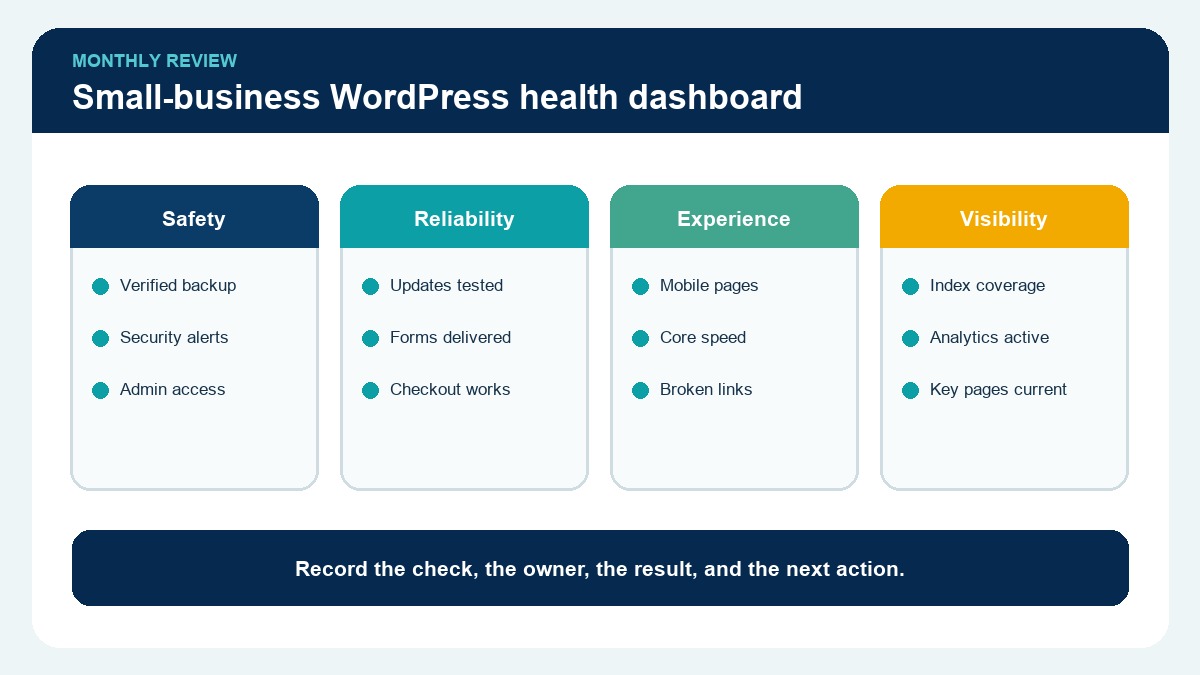
Every month, confirm that backups can be restored, WordPress core and extensions are current, administrator access is controlled, forms deliver real test enquiries, important pages work on mobile, analytics still record conversions, and the site has no unexpected indexation or performance problems. Take a fresh backup and document the baseline before making material changes.
TL;DR
- Test restoration—not only whether a backup file exists.
- Review core, plugin, theme, and PHP compatibility before updating.
- Test forms, calls, booking paths, checkout, and email delivery.
- Remove unnecessary administrator access and abandoned extensions.
- Check uptime, security alerts, performance, broken links, and indexation.
- Record changes so problems can be traced and reversed.

Start with ownership and recovery
The business should know who controls the domain registrar, DNS, hosting account, WordPress administrators, security service, analytics, email delivery, and backup destination. Store recovery information in an approved password manager and assign at least one responsible owner.
A backup is useful only if it contains the database and required files, is stored away from the live server, and can be restored. Review the latest successful backup date and run a controlled restoration test on a safe staging environment at an appropriate interval.
Do not wait for a security incident to discover that the only backup is corrupt or belongs to a former vendor account.
Review WordPress, plugin, theme, and PHP updates
Check available updates and their release notes. Prioritize security releases, but avoid clicking every update on a revenue-critical site without a recovery point and compatibility plan.
A controlled process is safer. WordPress’s official documentation explains automatic background updates and the controls available, but each business still needs a recovery and testing policy suited to its site:
- capture a current backup;
- record versions and critical functionality;
- update a staging copy when risk justifies it;
- test forms, navigation, checkout, integrations, and responsive layouts;
- apply the approved change during a suitable window;
- clear relevant caches;
- repeat the functional tests;
- document the result or rollback.
Remove unused plugins and themes after confirming they are not dependencies. Inactive software can still increase maintenance and security exposure.
Test the lead path like a customer
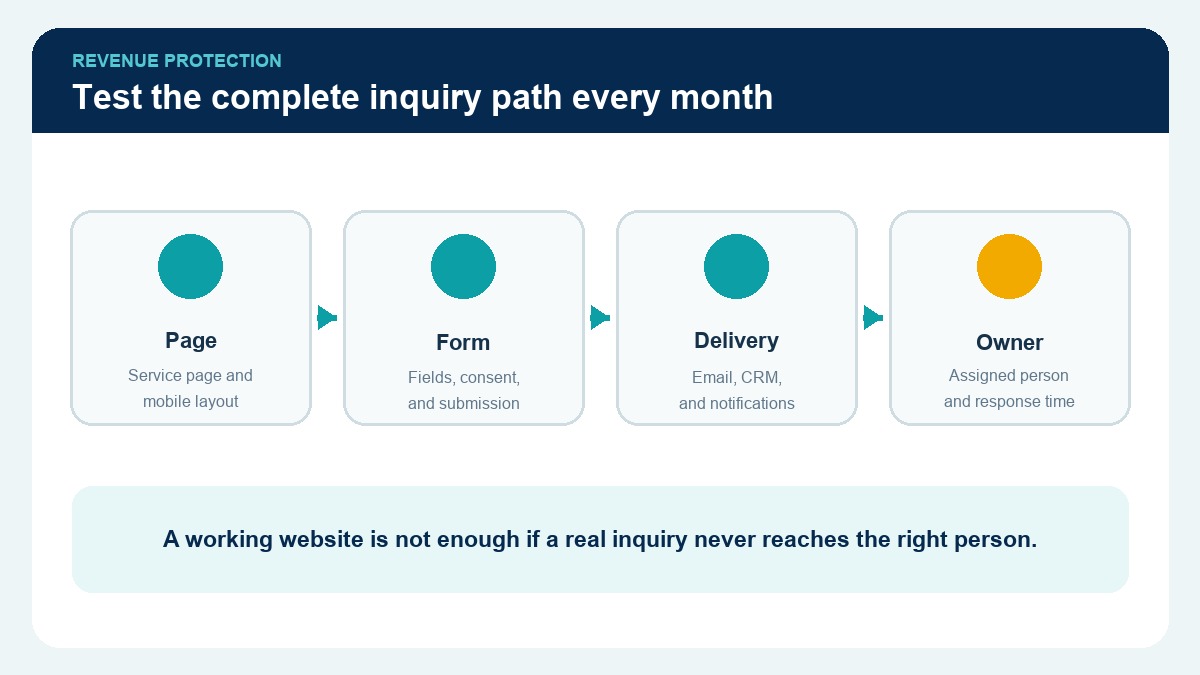
Open the site on desktop and mobile. Submit every important form using a clearly labelled test record. Verify that:
- the visitor sees an accurate confirmation;
- the message reaches the intended inbox or CRM;
- source information is retained where configured;
- spam controls do not block legitimate submissions;
- notifications do not expose private form data unnecessarily;
- the assigned person can respond.
Also test phone links, messaging buttons, booking tools, checkout, newsletter subscription, and downloadable resources. A green uptime monitor does not prove the revenue path works.
Review security and access
Check recent security alerts, failed login patterns, unexpected administrator accounts, and changes to critical files or settings. Confirm that each user has the minimum role required for current work.
Remove access for former staff and vendors. Avoid shared administrator accounts because they make investigation and accountability harder. Use multi-factor authentication where the hosting and WordPress security setup supports it.
Review application passwords, API connections, form integrations, and scheduled automation. Revoke credentials that no longer have an active owner or business purpose.
Check performance and mobile usability
Test representative pages rather than only the homepage:
- the primary service page;
- a high-traffic blog article;
- a landing page;
- the contact or booking page;
- an ecommerce category and product page where relevant.
Look for slow hero images, layout movement, delayed interactions, broken fonts, intrusive popups, and mobile controls that are difficult to tap. Compare results with the previous baseline before installing another optimization plugin.
Performance problems can come from hosting, images, third-party scripts, database overhead, uncached pages, or a recent design change. Diagnose the bottleneck before applying a generic fix.
Check SEO and indexation essentials
Review a small, business-critical sample each month:
- canonical URL is correct;
- page remains indexable when intended;
- title and meta description are present;
- there is one clear page heading;
- internal links still lead to useful destinations;
- structured data matches visible content;
- featured and social-preview images load;
- sitemap and robots controls remain intentional.
Use Google Search Console to look for new indexing issues, unusual traffic changes, manual actions, or security notices. A change in traffic needs diagnosis; it should not automatically trigger a sitewide rewrite.
Confirm analytics and consent behavior
Analytics can appear installed while important events silently stop working. Test page views, form submissions, phone clicks, booking completion, ecommerce events, and consent behavior according to the site’s measurement plan.
Compare captured conversions with actual inbox, CRM, or order records. If GA4 reports ten submissions but only six records arrived, investigate the four-record gap before using the data to make marketing decisions.
RightJob’s contact-form GA4 checklist provides a focused test for that handoff.
Keep a maintenance record
For each maintenance window, record:
- date and responsible person;
- backups confirmed;
- versions before and after;
- tests completed;
- issues found;
- actions taken;
- rollback or follow-up required;
- next review date.
This short record prevents repeated troubleshooting and makes vendor handoffs safer.
Frequently Asked Questions
How often should WordPress maintenance be performed?
Monitoring and backups may run daily, while a structured review can occur weekly or monthly depending on site risk and activity. Ecommerce, membership, advertising, and lead-generation sites usually need closer monitoring than a brochure site.
Should WordPress update automatically?
Automatic updates can reduce exposure for suitable sites and extensions, but critical websites still need backups, compatibility monitoring, and post-update tests. Choose policies by risk instead of using one rule for every component.
Is a backup plugin enough?
No. Confirm storage location, retention, database and file coverage, access ownership, and restoration. A successful notification is not the same as a tested recovery.
What should I test after a plugin update?
Test the functionality the plugin influences, plus forms, navigation, mobile layout, caching, analytics, and any connected service that depends on the changed component.
Can RightJob Solutions maintain our WordPress website?
RightJob Solutions can review updates, backups, security, lead paths, performance, and website ownership. Explore our web development services or contact us to define an appropriate maintenance scope.
Final takeaway
WordPress maintenance should protect business continuity, not merely produce a list of updated plugins. Combine recovery, controlled change, security review, customer-path testing, analytics reconciliation, and documented ownership.
The result is a website the business can trust between launches—not only immediately after one.
Editorial review note: WordPress, hosting, plugin, and security guidance changes. Verify current vendor documentation before applying updates or access changes to a production site.